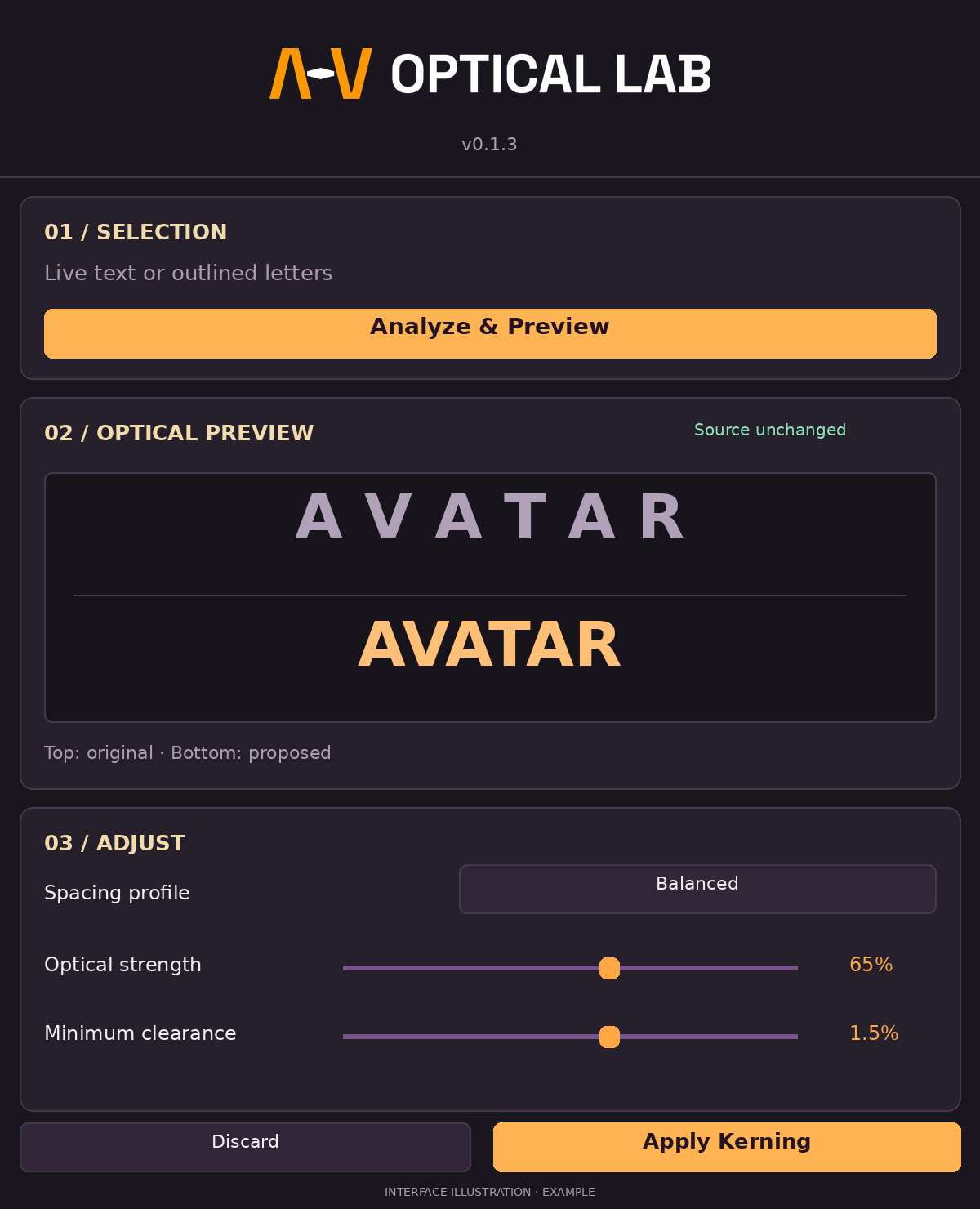
01 / LIVE TEXT & OUTLINESStart with the wordmark you have.
Analyze an entire live-text wordmark or individually grouped outlined letters. Live-text geometry is read from a temporary outlined duplicate, leaving the original live text editable.
- Select 2–64 supported Latin characters, numbers or punctuation in a single line.
- For live text, use an unrotated, unscaled selection with 100% horizontal scale.
- For outlines, select individual letter objects or one group containing them.
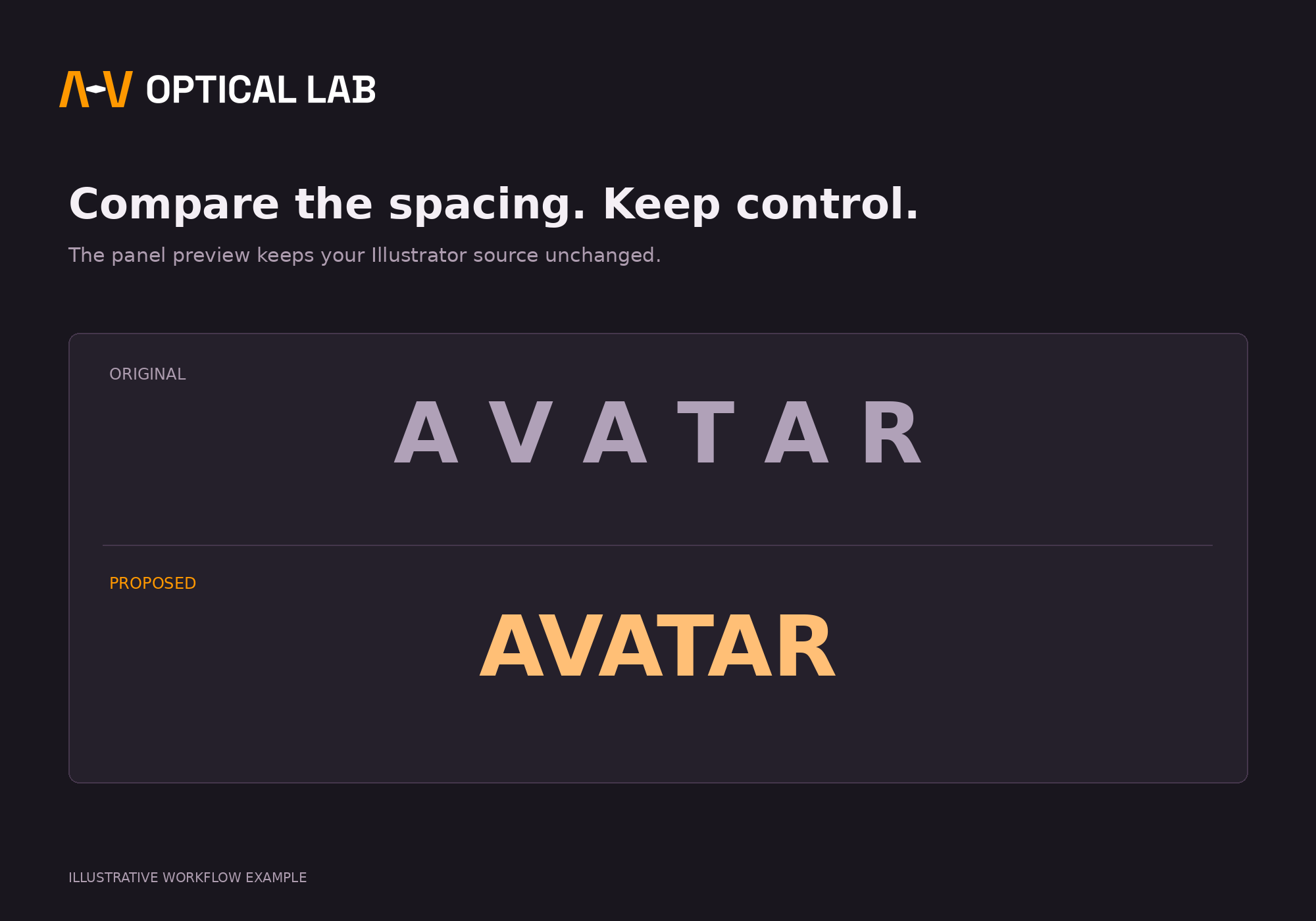
02 / OPTICAL PREVIEWCompare before you commit.
View the original spacing above a proposed arrangement inside the panel. Choose Balanced, Tight wordmark or Open, then adjust optical strength and minimum clearance.
- Keep the source unchanged while reviewing the panel preview.
- Use Balanced, Tight wordmark or Open spacing profiles.
- Treat suggestions as a starting point for your own optical judgement.
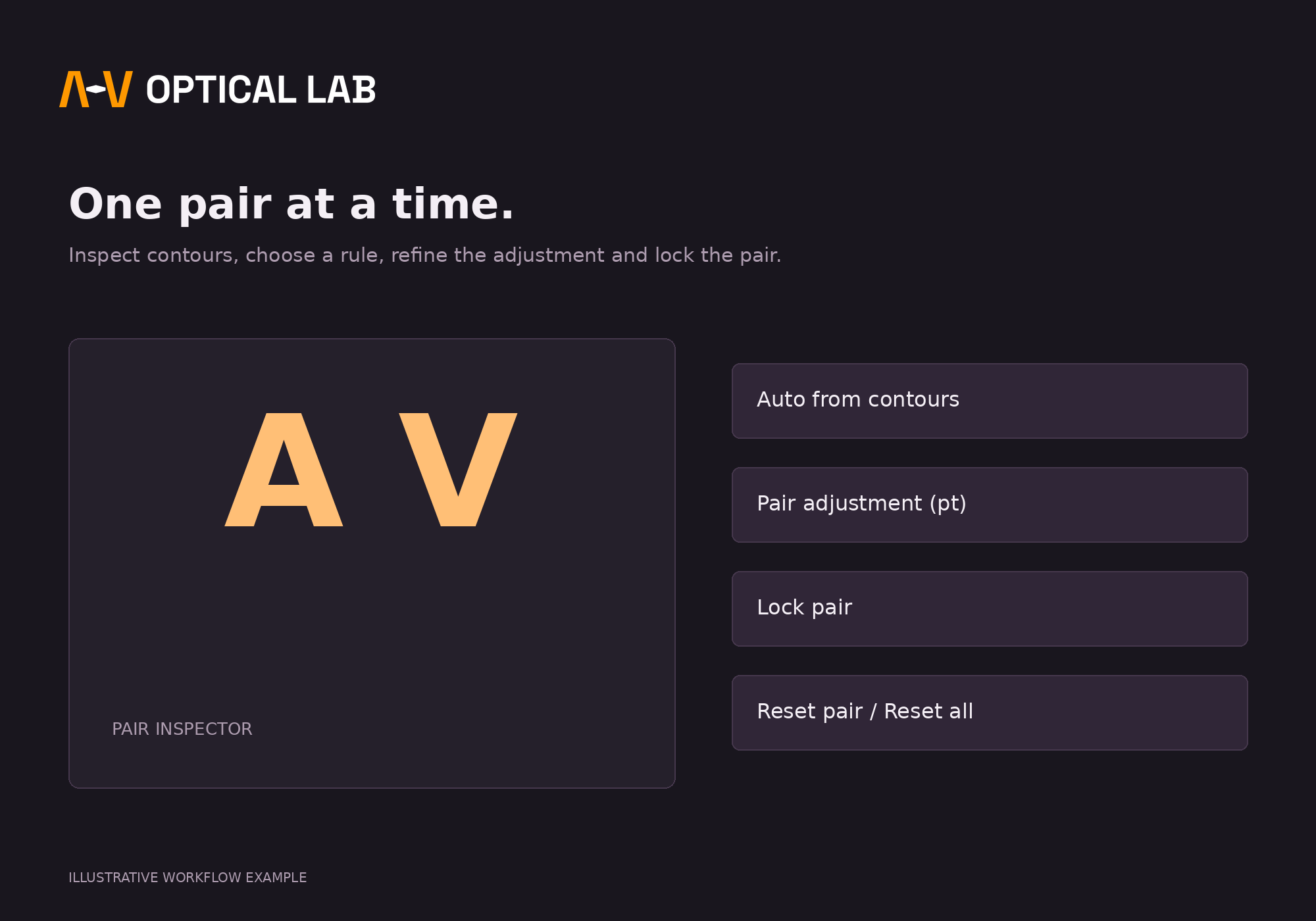
03 / PAIR INSPECTORGive each pair your attention.
Move through the wordmark one pair at a time. Inspect the facing contours, measured gap, target and suggested adjustment, then make a manual correction where needed.
- Use automatic contour rules or choose straight, round and diagonal pair rules.
- Enter a pair adjustment in points and lock it during recalculation.
- Reset a single pair or all adjustments.
04 / APPLY OR DISCARDYour final call, every time.
Discard a preview without changing the source, or apply the reviewed adjustments to the selected wordmark. Illustrator Undo can restore applied changes.
- Preview happens in the panel rather than as an on-canvas overlay.
- Apply adjusts live-text kerning or the positions of outlined letters.
- Analyze again if the selection or source changes before applying.