01 / LAYOUT STYLESA structure for every story.
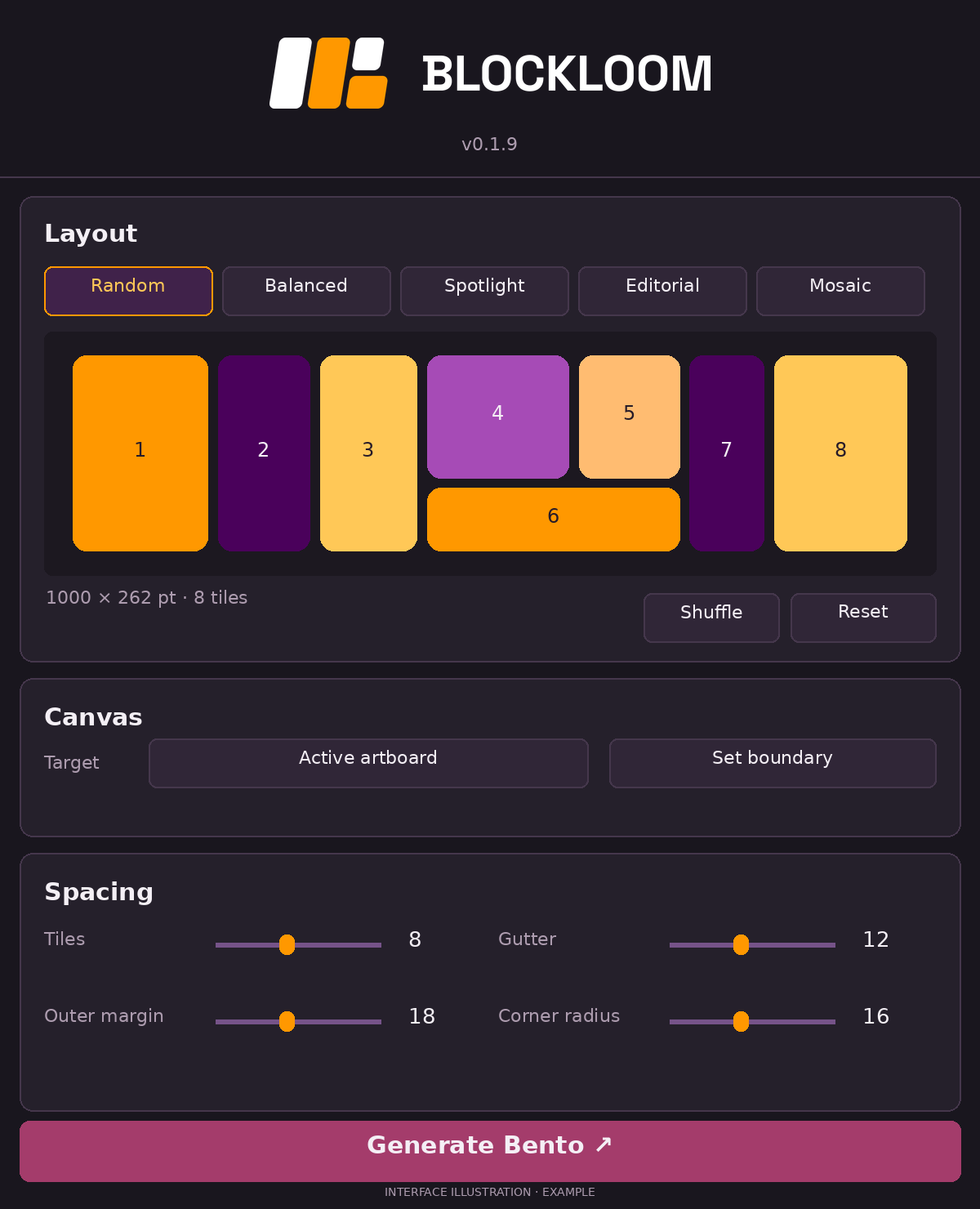
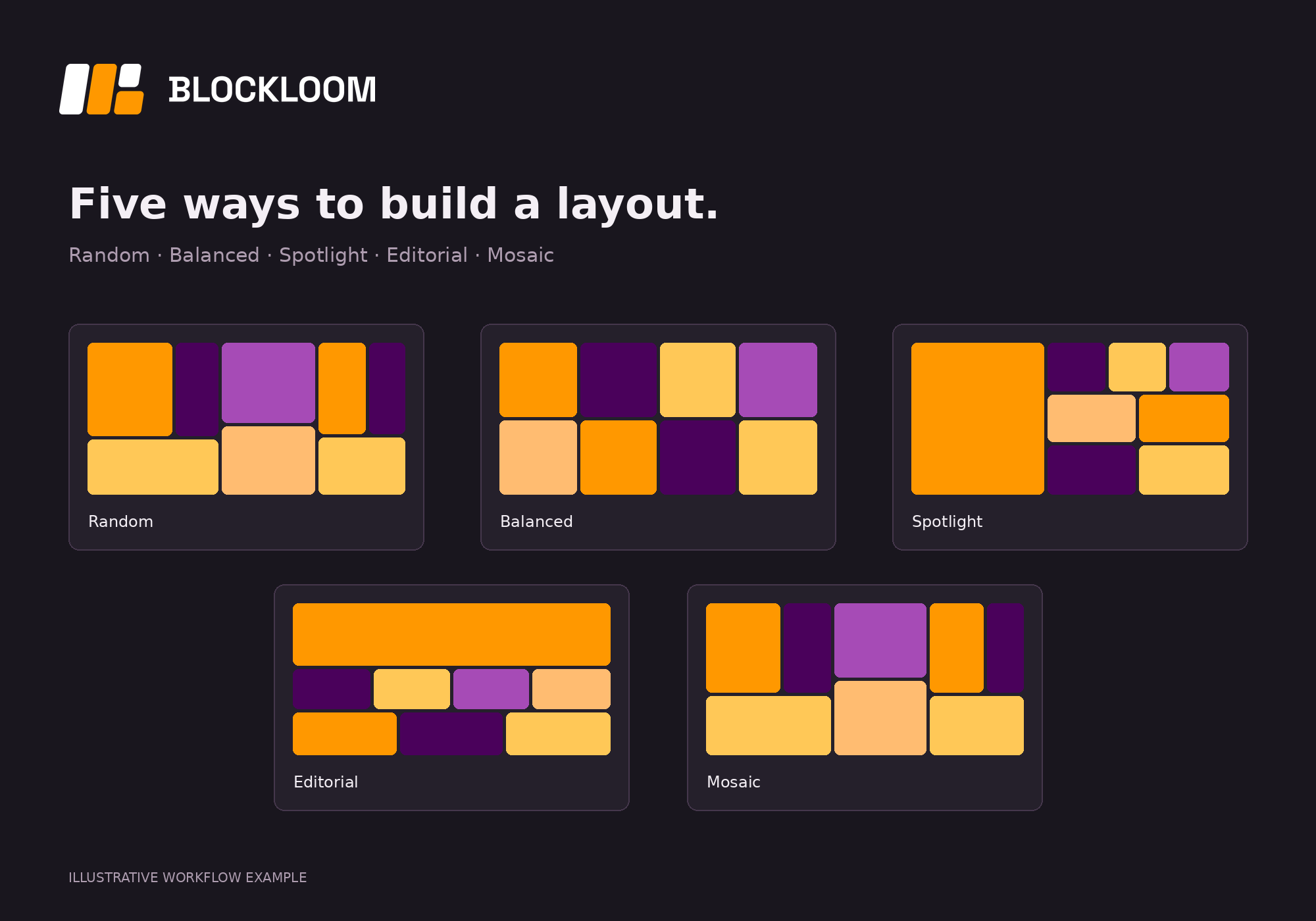
Start with Random, Balanced, Spotlight, Editorial or Mosaic. Shuffle the arrangement while keeping control of tile count and spacing.
- Choose from five layout styles.
- Use the layout seed to reproduce an arrangement.
- Generate editable tiles on the Illustrator canvas.
02 / CANVAS & BOUNDARYFit the layout to your canvas.
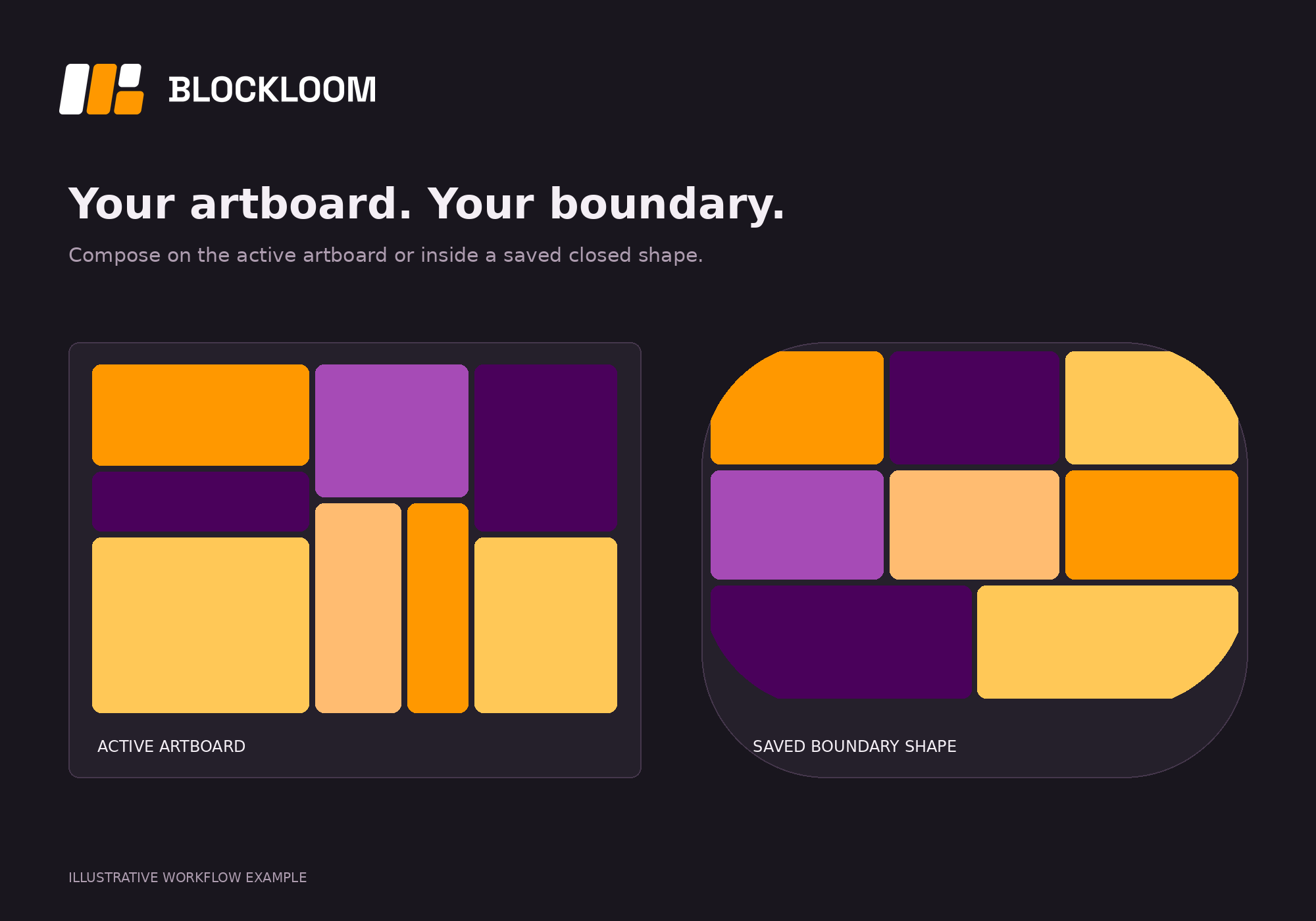
Fill the active artboard or save a closed shape as a boundary. Boundary mode clips the generated tiles inside that shape.
- Use the active artboard or a saved boundary shape.
- Set the boundary from selected closed artwork.
- Preview on canvas, clear the temporary preview, or generate the layout to keep it.
03 / SPACING CONTROLSMake the space feel intentional.
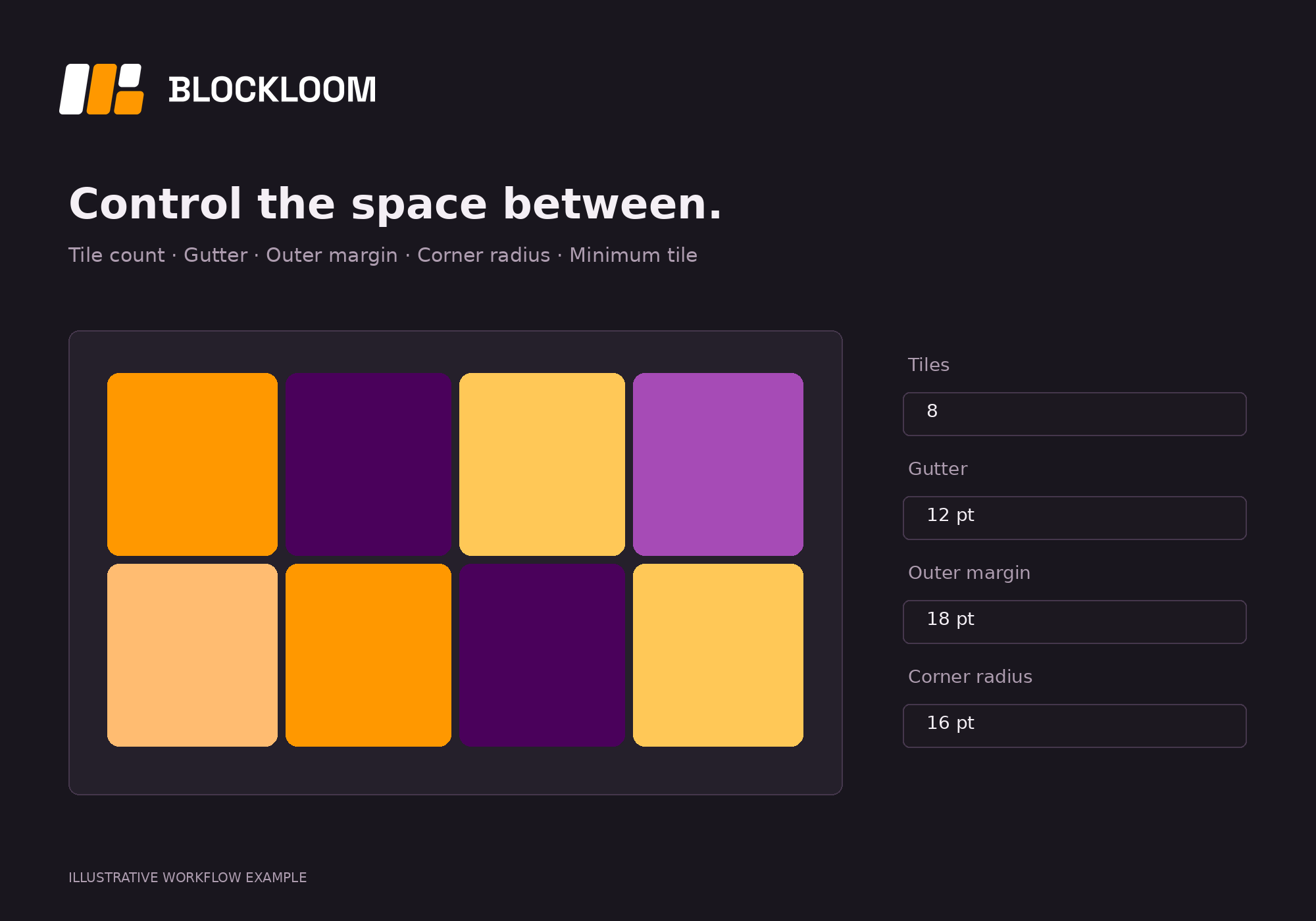
Adjust the tile count, gutter, outer margin, corner radius and minimum tile size from one panel. Refine the arrangement before generating it.
- Work in points, millimetres or inches.
- Use sliders or enter exact values.
- Reset layout settings while keeping assigned artwork.
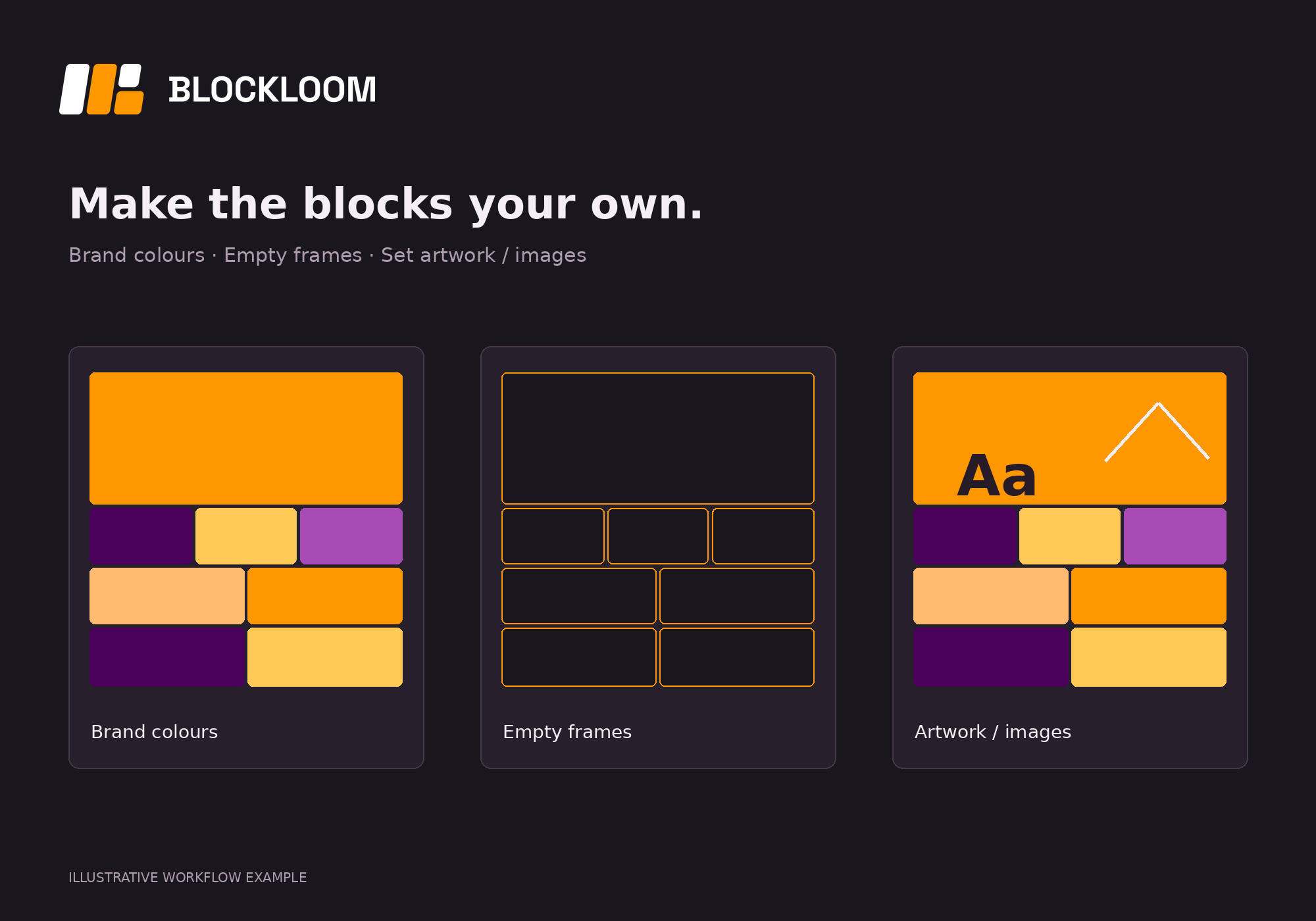
04 / TILE CONTENTBring your brand into the blocks.
Choose brand colours, empty frames or selected artwork and images. Assign several sources, add more, then cycle their order to explore the composition.
- Crop artwork to fill each tile or fit the whole image inside.
- Control the accent colour and outline weight.
- Group complete mockups before assigning them as tile artwork.