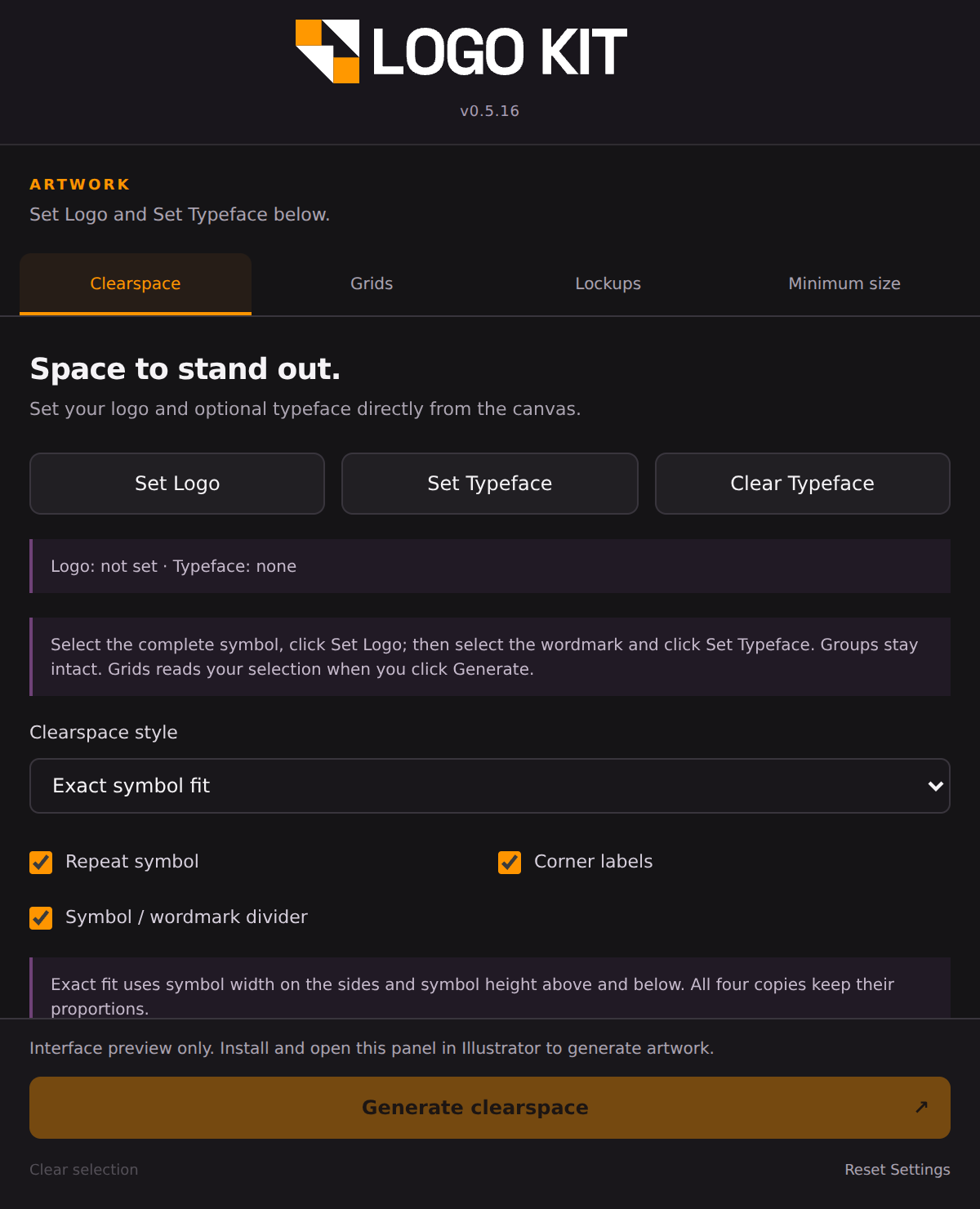
01 / CLEARSPACEGive the logo room to breathe.
Capture your symbol and optional wordmark from the Illustrator canvas, then build a clearspace diagram that explains how much room to leave around them. Choose exact symbol fit, a uniform reference frame, or classic rings to suit the identity.
- Choose symbol-based spacing or a custom measurement rule.
- Adjust side factors, repeated symbols, corner labels and dimensions.
- Style the diagram with colour, opacity, line weight and label size.
02 / GRIDSMake the construction visible.
Turn selected artwork into a construction presentation. Choose which structural details to show, from gridlines and outlines to anchor points, Bézier handles, fitted circles and centre axes.
- Reads your current selection and active artboard when you generate.
- Control marker sizes, stroke colours, grid opacity and circle-fit tolerance.
- Use the result to explain geometry; fitted circles are visual aids, not proof of a perfect construction.
03 / LOCKUPSBring symbol and wordmark together.
Assign the logo symbol and wordmark separately, then create a horizontal or vertical arrangement. Adjust their relative scale and spacing without rebuilding the layout by hand.
- Place the symbol to the left or above the wordmark.
- Set the gap and wordmark height relative to the symbol.
- Generated copies are centred within the active artboard and scaled proportionally if needed.
04 / MINIMUM SIZECompare before setting the rule.
Generate proportional logo samples at chosen widths so you can judge how the identity holds up at smaller sizes. Assign a separate icon for the 16 px sample and compare the rest using the full logo.
- Choose pixel, millimetre, point or inch measurements.
- Arrange samples in a row or column, with wrapping inside the artboard.
- Use actual 1× exports at 100% to judge readability; the tool does not automatically certify a minimum size.